RSSrch Feed Folders let you organize Zotero RSS subscriptions into a hierarchy built around your research.
They provide structure for large feed libraries without creating Zotero collections or changing how Zotero manages RSS subscriptions.
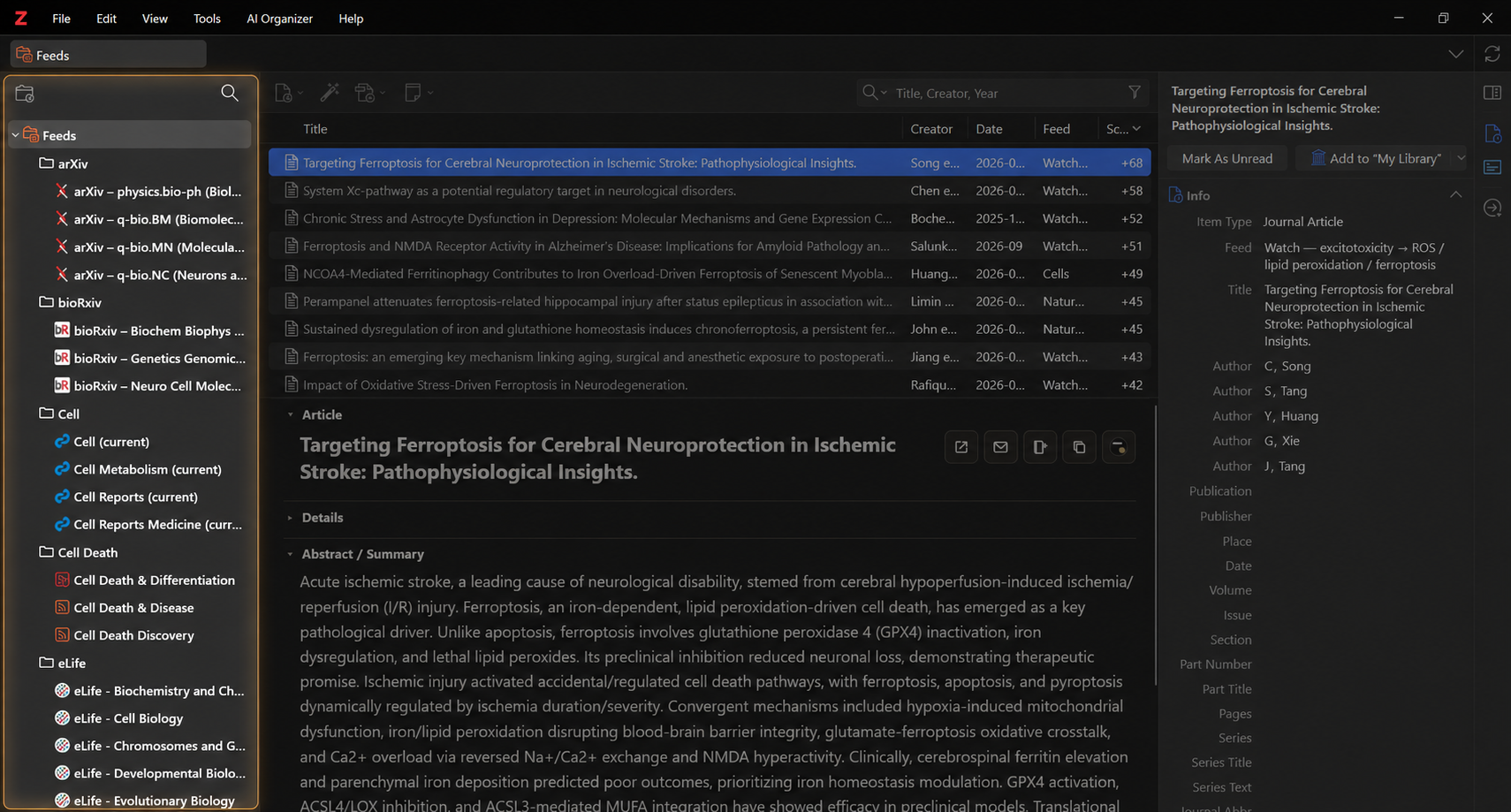
How Feed Folders work
RSSrch folders are an organizational layer inside Zotero’s Feeds tree.
For example:
Feeds
└── Neurology
    ├── ALS Research
    │   ├── Motor Neurons
    │   └── Excitotoxicity
    ├── Ferroptosis
    └── Mitochondria
A folder can contain:
-
Zotero RSS feeds
-
RSSrch subfolders
-
both feeds and subfolders
RSSrch supports nested folders up to 16 levels deep.
Important
RSSrch Feed Folders are not Zotero collections. Organizing a feed in an RSSrch folder does not change the underlying Zotero feed subscription.
Create a folder
From the Feeds tree
Right-click Feeds and choose:
Add folder…
Enter a name for the new folder.
From the RSSrch menu
Open:
Tools → RSSrch → Feed Folders → New Folder…
Create a subfolder
Right-click an existing RSSrch folder and choose:
New Subfolder…
You can also use:
Tools → RSSrch → Feed Folders → New Subfolder in Selected Folder…
The new folder is created inside the selected folder.
Add feeds to folders
Feeds can be organized with drag and drop.
Drag a Zotero feed onto an RSSrch folder to place it inside that folder.
RSSrch changes only the organizational location of the feed. The underlying Zotero subscription remains intact.
Move multiple feeds
You can select multiple Zotero feeds and drag them into an RSSrch folder together.
Create a folder from selected feeds
Select one or more feeds, right-click the selection, and choose:
Add to folder…
RSSrch asks for a folder name and creates a new folder containing the selected feeds.
Move feeds between folders
Drag a feed from one RSSrch folder onto another folder.
The feed is reassigned to the destination folder.
Its Zotero subscription and feed items are not changed.
Remove a feed from a folder
Right-click a feed that is currently organized inside an RSSrch folder and choose:
Remove from folder
The feed is returned to the top-level Feeds area.
Removing a feed from an RSSrch folder does not unsubscribe from it and does not delete its items.
Move folders
RSSrch folders can also be moved with drag and drop.
Drag one RSSrch folder onto another folder to make it a subfolder.
RSSrch prevents invalid moves such as placing a folder inside itself or one of its own descendants.
Expand and collapse folders
RSSrch folders can be expanded and collapsed in Zotero’s Feeds tree.
Double-click a folder to expand or collapse it.
RSSrch remembers the folder expansion state.
Selecting a folder
Selecting an RSSrch folder displays the feed items belonging to that research scope.
The view includes feeds inside the selected folder and feeds inside its descendant subfolders.
For example:
Neurology
├── ALS Research
│   ├── Motor Neurons
│   └── Excitotoxicity
├── Ferroptosis
└── Mitochondria
Selecting Neurology displays items from feeds throughout that hierarchy.
Selecting ALS Research displays items from:
-
feeds directly inside ALS Research
-
feeds inside Motor Neurons
-
feeds inside Excitotoxicity
This lets a folder represent an entire research area rather than just a visual container.
Folder tags
Selecting an RSSrch folder also expands Zotero’s Tag Selector to the feeds represented by that folder.
The Tag Selector can therefore show tags from items across the selected folder and its descendant feeds.
This makes it possible to explore the terminology appearing across an entire research area instead of examining one feed at a time.
See Automatic Tags and Folder Tags for more information.
Folder dashboard
Selecting an RSSrch folder also displays an RSSrch dashboard in the reader area.
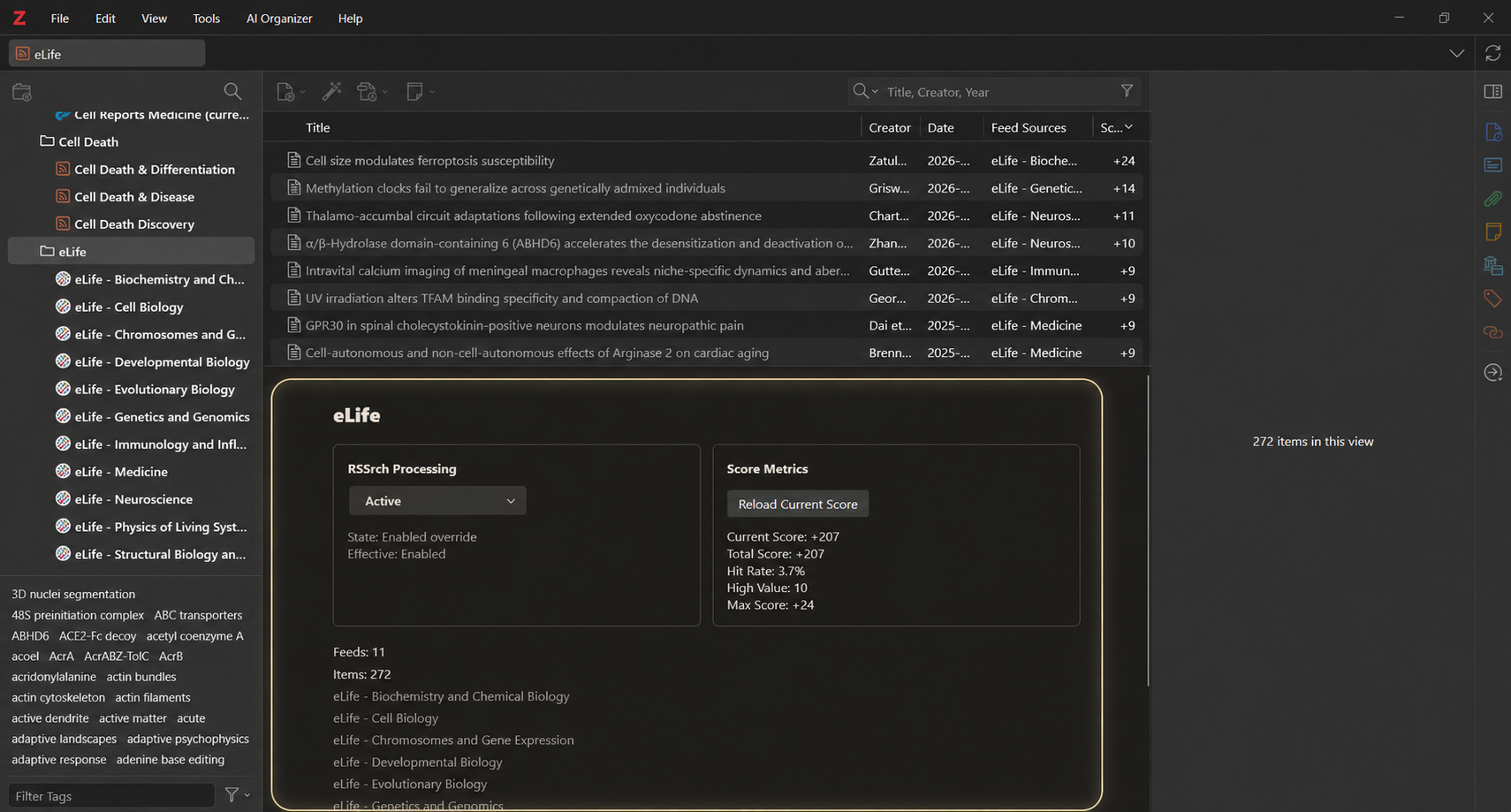
The folder dashboard shows information about the selected folder, including:
-
folder name
-
number of feeds directly inside the folder
-
number of feed items in the folder scope
-
RSSrch processing state
-
effective processing state
-
optional score metrics
Score metrics
Score metrics are loaded on demand.
Click:
Load Current Score
RSSrch can then display:
-
Current Score
-
Total Score
-
Hit Rate
-
High Value
-
Max Score
After metrics have been calculated, the button becomes:
Reload Current Score
Loading these metrics on demand keeps normal folder navigation separate from the additional scoring work.
RSSrch Active
Each RSSrch folder can control whether RSSrch processing applies to that part of the feed hierarchy.
There are three folder states.
Active
RSSrch processing is enabled for the folder.
Inactive
RSSrch processing is disabled for the folder.
Inherited
The folder inherits its processing state from its parent.
The current state can be changed from the folder dashboard or from the folder’s right-click menu under:
RSSrch Active
The available options are:
-
On
-
Off
-
Inherit from Parent
The dashboard also shows the folder’s Effective state after inheritance is resolved.
Important
RSSrch Active controls RSSrch processing only. It does not enable or disable Zotero feed subscriptions and does not control Zotero’s feed refresh behavior.
Feed-level RSSrch Active settings
Individual feeds can also have their own RSSrch Active setting.
Right-click a Zotero feed and open:
RSSrch Active
The available options are:
-
On
-
Off
-
Inherit from Folder
This allows a feed to remain organized within a folder while using a different RSSrch processing state when needed.
Rename a folder
Right-click an RSSrch folder and choose:
Rename…
You can also use:
Tools → RSSrch → Feed Folders → Rename Selected Folder…
Changing an RSSrch folder name does not rename the feeds contained inside it.
Delete a folder
Right-click an RSSrch folder and choose:
Delete Folder…
You can also use:
Tools → RSSrch → Feed Folders → Delete Selected Folder…
RSSrch asks for confirmation before deleting the folder.
Deleting an RSSrch folder does not delete Zotero feeds
RSSrch removes only the organizational folder. Feed subscriptions and feed items remain in Zotero.
If the deleted folder contains feeds or subfolders, RSSrch promotes those contents one level upward.
For example:
Feeds
└── Neurology
    └── ALS
        ├── Feed A
        └── Mechanisms
Deleting ALS results in:
Feeds
└── Neurology
    ├── Feed A
    └── Mechanisms
If a top-level RSSrch folder is deleted, its direct feeds and subfolders are returned to the Feeds root.
Automatic provider grouping
RSSrch can automatically group currently ungrouped feeds by provider.
Open:
Tools → RSSrch → Feed Folders → Auto-Group Ungrouped Feeds by Provider
RSSrch examines ungrouped feeds and creates provider-based organization where appropriate.
Existing folder organization is left in place.
Export folder organization as OPML
RSSrch can export the feed-folder hierarchy as OPML.
Open:
Tools → RSSrch → Setup & Export → Export Feed Folders as OPML…
The exported OPML preserves the RSSrch folder hierarchy and its feeds.
See OPML Import and Export for more information.
Feed Folders as research scopes
RSSrch Feed Folders are designed to do more than visually organize a long list of subscriptions.
A folder can represent a research scope such as:
-
a disease or condition
-
a mechanism
-
a discipline
-
a project
-
a journal group
-
a broad research domain with narrower subdomains
Selecting that folder then gives you a combined item view and combined tag scope for the literature inside it.
Combined with Rule Manager, Relevance Scoring, and Automatic Tags and Folder Tags, this lets RSSrch organize incoming literature around the structure of the research itself.
Next
Once your feeds are organized, the next major step is understanding how RSSrch determines which incoming articles are relevant to your research.
➡️ Continue to Rule Manager