The Rule Manager is the main workspace for viewing and editing the research rules RSSrch uses to evaluate incoming feed items.
Rules can determine:
-
whether an item is admitted or filtered
-
how relevant an admitted item is to your research
-
what actions RSSrch should take when a new item meets specified criteria
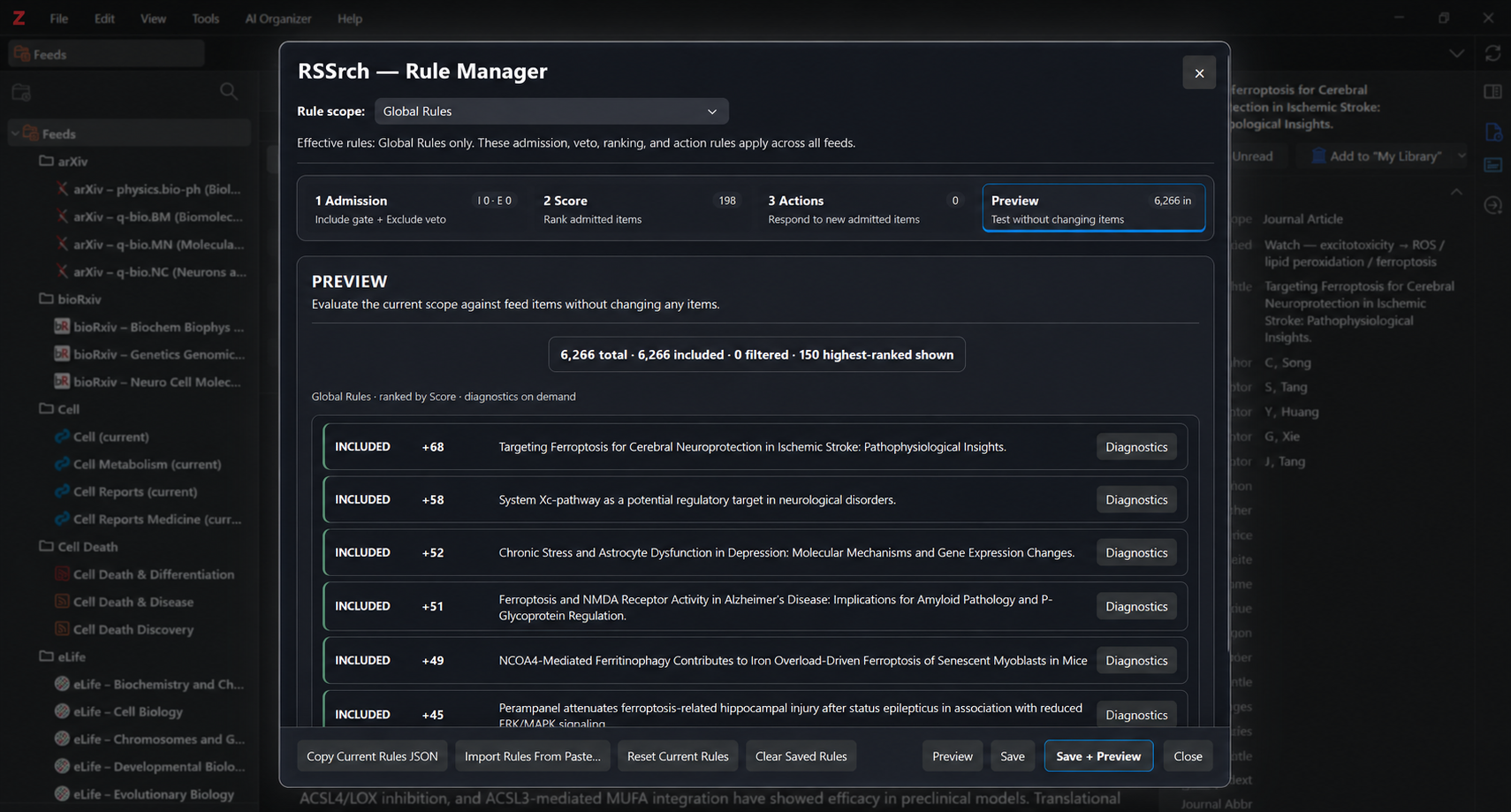
Open the Rule Manager
In Zotero, open:
Tools → RSSrch → Rule Manager…
The Rule Manager contains four workspaces:
-
Admission
-
Score
-
Actions
-
Preview
These represent the main stages of RSSrch rule processing.
Rule scopes
At the top of the Rule Manager is the Rule scope selector.
You can edit:
-
Global Rules
-
rules for an individual Zotero feed
Global Rules
Global Rules apply across all RSS feeds processed by RSSrch.
They are useful for concepts, exclusions, scoring signals, and other criteria that are relevant throughout your research environment.
Feed-specific rules
Each Zotero feed can also have its own rules.
When a feed has feed-specific rules, RSSrch combines them with the Global Rules for that feed.
The Rule Manager displays this as:
Global Rules + Feed Rules
Feed-specific rules can therefore add:
-
additional admission requirements
-
additional exclusion vetoes
-
additional scoring concepts
-
additional actions
Important
Feed rules do not replace Global Rules. Both scopes contribute to the effective rules used for that feed.
1. Admission
The Admission workspace determines whether an item enters the RSSrch research view.
Admission follows this order:
Include gate → Exclude hard veto → admitted item
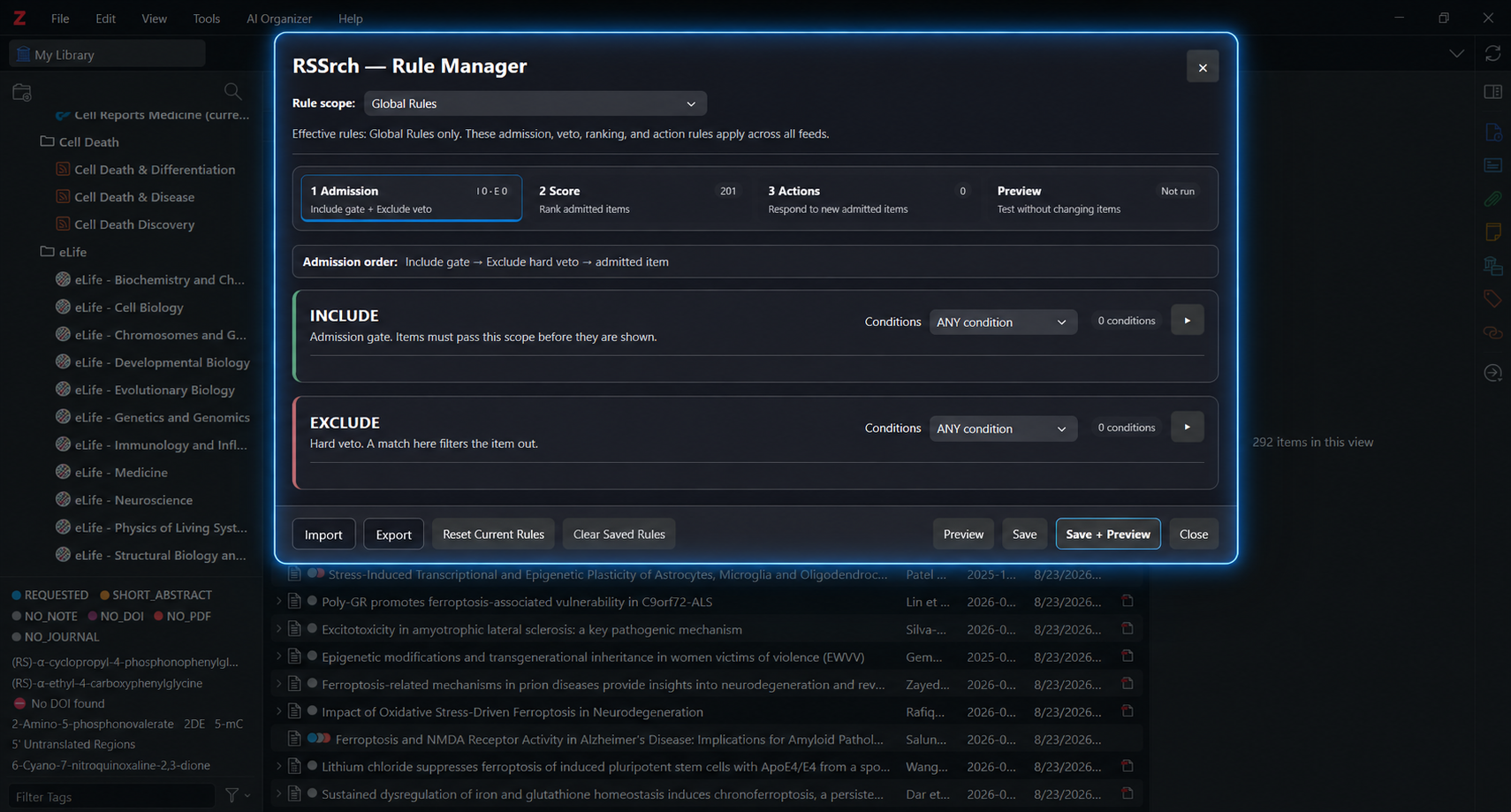
The workspace contains two sections:
-
Include
-
Exclude
Include rules
Include rules act as an admission gate.
If Include conditions are configured, an item must satisfy the Include logic to pass that scope.
If no active Include conditions exist, the Include gate passes automatically.
This makes it possible to restrict a research scope to papers matching specific subjects, mechanisms, sources, authors, article types, or other metadata.
Exclude rules
Exclude rules act as hard vetoes.
If an item matches the configured Exclude logic, RSSrch filters the item even if it otherwise passed the Include gate.
If no active Exclude conditions exist, nothing is vetoed by that section.
This is useful for removing literature that contains relevant terminology but represents the wrong:
-
subject
-
application
-
research context
-
article type
-
population
-
mechanism
-
source
Condition logic
Both Include and Exclude sections allow you to control how their conditions are combined.
Available modes are:
-
ANY condition
-
ALL conditions
-
NONE of conditions
ANY condition
The group matches when at least one configured condition matches.
ALL conditions
Every configured condition must match.
NONE of conditions
The group matches only when none of its configured conditions match.
Add a condition
Click:
+ Add condition
Each condition can examine a specific Zotero or RSSrch metadata field.
Available fields include:
-
Title
-
Abstract / Summary
-
Author
-
URL
-
Publication / Source
-
Publisher
-
Section / Article Type
-
Feed Subjects
-
Tags
-
Manual Tags
-
DOI
Condition operators
Conditions can use:
-
contains
-
contains whole word
-
begins with
-
ends with
-
equals
-
matches regexp
-
is empty
-
is not empty
For text-based operators, RSSrch supports lists of terms and phrases.
Entering one term or phrase per line is recommended.
A condition can require:
-
ANY term
-
ALL terms
Conditions can also be set to Case sensitive when needed.
Condition labels
Conditions can have optional labels.
Labels do not change matching behavior. They make larger rule models easier to understand and maintain.
For example:
Motor neuron terminology
Ferroptosis mechanisms
Exclude oncology treatment studies
High-value journal sources
2. Score
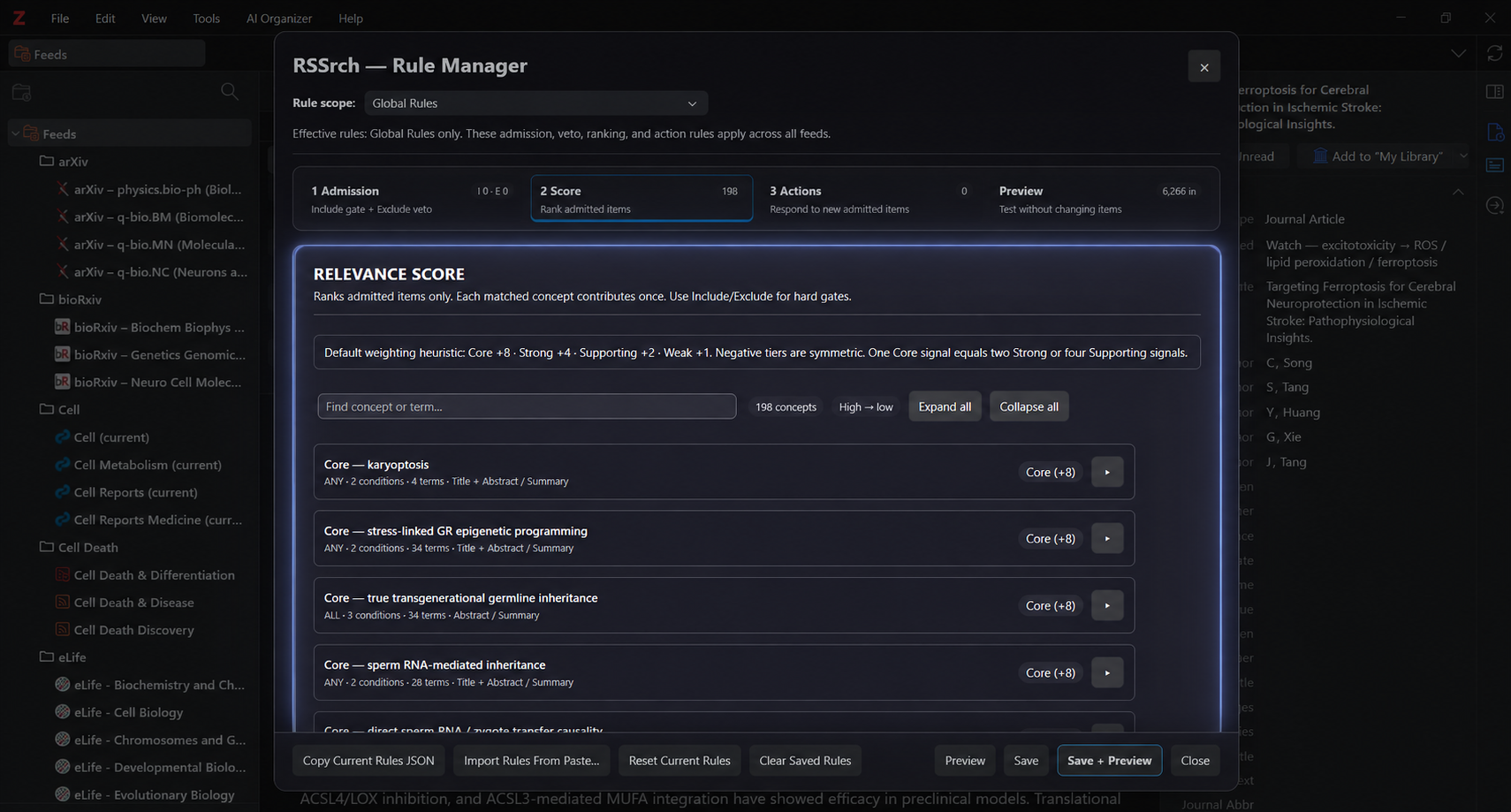
The Score workspace ranks items that have already passed admission.
Scoring does not decide whether an item is included or excluded.
Use Include and Exclude rules when something must function as a hard gate.
Scoring concepts
RSSrch scoring is organized around concepts.
A scoring concept contains:
-
a concept label
-
a point value
-
one or more conditions
-
logic controlling how those conditions relate
Click:
+ Add scoring concept
to create one.
For example, a concept might represent:
Oxidative stress
Motor neuron degeneration
Longitudinal human evidence
Specific experimental mechanism
High-value research methodology
Concept weights
RSSrch provides standard weight levels:
| Weight | Points |
|---|---|
| Core | +8 |
| Strong | +4 |
| Supporting | +2 |
| Weak | +1 |
| Mild penalty | -1 |
| Strong penalty | -2 |
| Major penalty | -4 |
| Near-veto penalty | -8 |
Positive concepts increase relevance.
Negative concepts reduce relevance without automatically filtering the item.
Tip
Use Exclude when a match should remove an item entirely. Use a negative score when the item may still be useful but should rank lower.
Multi-condition concepts
A scoring concept can contain multiple conditions.
The concept can require:
-
ALL conditions match
-
ANY condition matches
This allows scoring to represent relationships rather than isolated words.
For example:
Concept: Stress + receptor regulation

ALL conditions:
1. Stress terminology
2. Receptor regulation terminology
The concept contributes its point value once when its condition logic is satisfied.
It does not repeatedly award the same concept weight for every matching term.
Finding scoring concepts
Large research models may contain many scoring concepts.
The Score workspace provides:
-
Find concept or term…
-
Expand all
-
Collapse all
Concepts are displayed from higher weights toward lower weights to make the scoring structure easier to inspect.
How scores combine
For a feed with both Global and feed-specific rules:
Final relevance score
=
Global scoring
+
Feed-specific scoring
+
Article-type scoring, when enabled
The resulting relevance score can then be displayed and sorted in Zotero’s feed item list.
3. Actions
The Actions workspace lets RSSrch respond automatically to newly added feed items after they pass admission.
Actions can also run after metadata enrichment when an item was waiting for enrichment before evaluation.
Click:
+ Add action rule
to create an action.
Action criteria
An action rule can contain:
-
an optional label
-
Enabled / Disabled state
-
an optional minimum relevance score
-
additional matching conditions
Additional action conditions can use the same metadata fields and matching operators available elsewhere in the Rule Manager.
Their logic can be:
-
ALL conditions must match
-
ANY condition may match
If no additional conditions are configured, the action can operate using admission and an optional Score threshold alone.
Available actions
An action rule can perform one or more of these effects:
Show Zotero alert
Displays a Zotero notification when the rule fires.
Add to My Library
Uses Zotero’s normal feed-item Add to My Library save path.
Where available through Zotero’s translation process, associated attachments or PDFs may also be retrieved.
Add manual tag
Adds a specified manual Zotero tag to the feed item.
For example:
rssrch:priorityAn action rule can combine multiple effects.
For example:
Score ≥ 12
+
show alert
+
add to My Library
+
add tag "rssrch:priority"
RSSrch records action execution so the same configured effect is not repeatedly fired for the same feed item.
4. Preview
The Preview workspace lets you test the current rules without changing feed items.
Click:
Preview
RSSrch evaluates the current scope and reports how many items are:
-
included
-
filtered
Preview results also show the effect of the current rule configuration on individual items.
Important
Preview does not alter feed items. It is intended for testing and validating a research model before or after saving changes.
Unsaved changes and Preview
You can edit rules and run Preview before saving them.
This is useful for experimenting with:
-
new Include gates
-
new exclusions
-
changed scoring weights
-
new terminology
-
revised concept relationships
If you modify rules after running a Preview, RSSrch marks the previous Preview as Stale.
Run Preview again to evaluate the new configuration.
Save rules
Click:
Save
to save the current Rule Manager state for the selected scope.
You can also choose:
Save + Preview
to save the rules and immediately evaluate them.
Reset Current Rules
Reset Current Rules resets the Rule Manager editors to an empty/default rule state locally.
It does not persist that reset until you click Save.
This makes it possible to inspect a reset state without immediately replacing your saved rules.
Clear Saved Rules
Clear Saved Rules removes the stored rules for the current scope.
Unlike Reset Current Rules, this changes the saved rule state directly.
Use this only when you intend to remove the configured rules from that scope.
Import rules
Open the Import menu at the bottom of the Rule Manager.
It provides:
-
Import Rules From Paste…
-
Research Setup & Refinement Wizard…
Import Rules From Paste
RSSrch’s current rule import format is:
rssrch-rule-import/v5Paste a compatible ruleset into the import window.
Choose an import mode:
-
Merge Into Current Scope
-
Replace Current Scope
Then click:
Validate Import
RSSrch validates the complete import before changing any rules.
If validation succeeds, review the summary and click:
Apply Import
If validation fails, RSSrch does not partially apply the rules.
Merge
Merge preserves the existing rule model and combines compatible incoming rules with it while avoiding duplicate terms and rules where possible.
Replace
Replace makes the imported Include, Exclude, Score, and Actions sections authoritative for the selected scope.
Important
A complete AI-generated replacement research model should normally be imported as Replace when the instructions that generated the model specify replacement.
Research Setup & Refinement Wizard
The Rule Manager also provides direct access to:
Import → Research Setup & Refinement Wizard…
For most new users, the Research Setup Wizard is the recommended way to create the initial research model.
The Rule Manager is then used to inspect, test, and manually refine that model.
Export rules
Open the Export menu for additional tools.
Copy Current Rules JSON
Copies the complete current Rule Manager configuration to the clipboard using:
rssrch-rule-import/v5This is useful for:
-
backups
-
examining the model
-
transferring rules
-
AI-assisted refinement
-
development and troubleshooting
Export AI Setup Package
Creates the RSSrch AI setup/refinement package used to analyze and refine the research model with an external AI system.
Export Rejected Items for Audit
Exports information about items rejected by the rule model so the filtering behavior can be reviewed.
This can help identify:
-
overly broad exclusions
-
overly restrictive Include gates
-
missing terminology
-
unexpected filtering behavior
A useful way to think about the Rule Manager
RSSrch separates three different questions:
1. Should this paper enter the research view?
Use:
Admission → Include / Exclude
2. How important is this paper to the research?
Use:
Score
3. What should RSSrch do when a new paper meets specific criteria?
Use:
Actions
That separation is important.
A term being relevant enough to increase a score does not necessarily mean it should be required for admission.
Likewise, a term that makes a paper less valuable does not necessarily mean the paper should be completely excluded.
Recommended workflow
For a research model created through the Wizard:
-
Run the Research Setup Wizard.
-
Import and initialize the generated research model.
-
Open the Rule Manager.
-
Review the Admission rules.
-
Review the Score concepts and weights.
-
Run Preview.
-
Inspect included and filtered items.
-
Adjust the model when necessary.
-
Save the refined rules.
As your research develops, the Rule Manager can be used for targeted manual changes, while the Research Setup & Refinement Wizard can perform broader AI-assisted refinement of the model.
Next
The next step is understanding the admission system in greater detail.
➡️ Continue to Include and Exclude Rules