After installing RSSrch, the recommended first step is to run the Research Setup Wizard.
The Wizard creates the research model RSSrch will use to identify, filter, and rank literature according to your research goals.
Open the Research Setup Wizard
In Zotero, open:
Tools → RSSrch → Research Setup & Refinement…
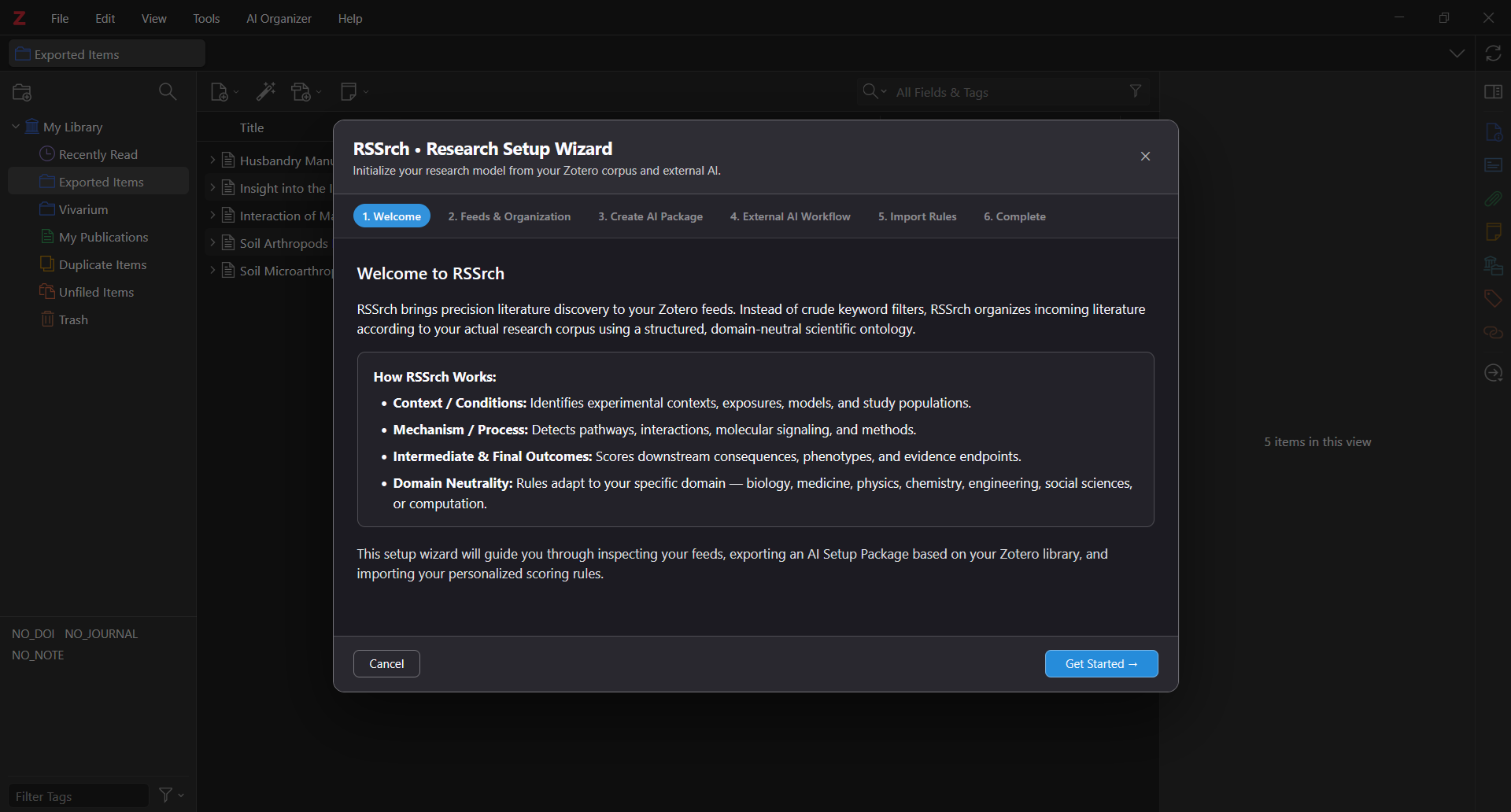
For a new RSSrch installation, this opens the Research Setup Wizard.
If you already have a configured research model, the same command opens Research Model Refinement instead.
What the Wizard does
For a new installation, the Wizard takes you through six steps.
1. Welcome
RSSrch introduces its research model and explains how it organizes literature according to research concepts rather than relying only on simple keyword matching.
Click Get Started →.
2. Feeds & Organization
RSSrch examines your current Zotero RSS environment.
It reports how many feeds and RSSrch Feed Folders are available.
If you have not added feeds yet, you can still create your research model. Zotero feeds can be added before or after setup.
RSSrch does not manage feed subscriptions itself. Zotero remains responsible for subscribing to and refreshing feeds.
Click Continue to AI Package →.
3. Create AI Setup Package
The Wizard creates a ZIP package describing your research environment.
The package includes information and instructions that allow an external AI assistant to understand your research goals and construct an RSSrch research model.
Click:
Export AI Setup Package ZIP…
Choose where to save the ZIP file.
The Wizard will confirm when the package has been exported successfully.
4. External AI Workflow
Upload the ZIP package to a capable AI assistant such as ChatGPT, Claude, or Gemini.
RSSrch provides a ready-made prompt for this step.
Click:
Copy AI Prompt
Attach the ZIP file to your AI conversation and paste the copied prompt.
The package instructs the AI to read:
-
START_HERE.md -
RSSrch_AI_Instructions.md
before analyzing the rest of the package.
The AI may ask questions about your research goals before producing the final model.
When the model is ready, the AI should return a complete:
rssrch-rule-import/v5
JSON ruleset.
Copy the complete JSON block.
5. Import Rules
Return to the RSSrch Wizard.
Paste the generated JSON into the rules field.
Choose:
Validate Rules
RSSrch checks the rules before allowing them to be installed.
If validation succeeds, continue with:
Apply Rules & Initialize →
RSSrch saves the research model and applies it to your RSS feed environment.
6. Complete
Your initial RSSrch research model is now configured.
RSSrch can begin using the model to:
-
determine research relevance
-
filter literature
-
calculate relevance scores
-
identify matched research concepts
-
prioritize incoming papers
From the completion screen you can also open the Rule Manager to inspect or modify the resulting model.
You can run the Wizard again
The Wizard is not limited to first-time setup.
Open:
Tools → RSSrch → Research Setup & Refinement…
again whenever you want to refine your research model.
Once a model already exists, RSSrch automatically switches to Research Model Refinement.
Next
With your research model configured, the next step is learning how RSSrch organizes and presents your literature.
➡️ Continue to Feed Folders