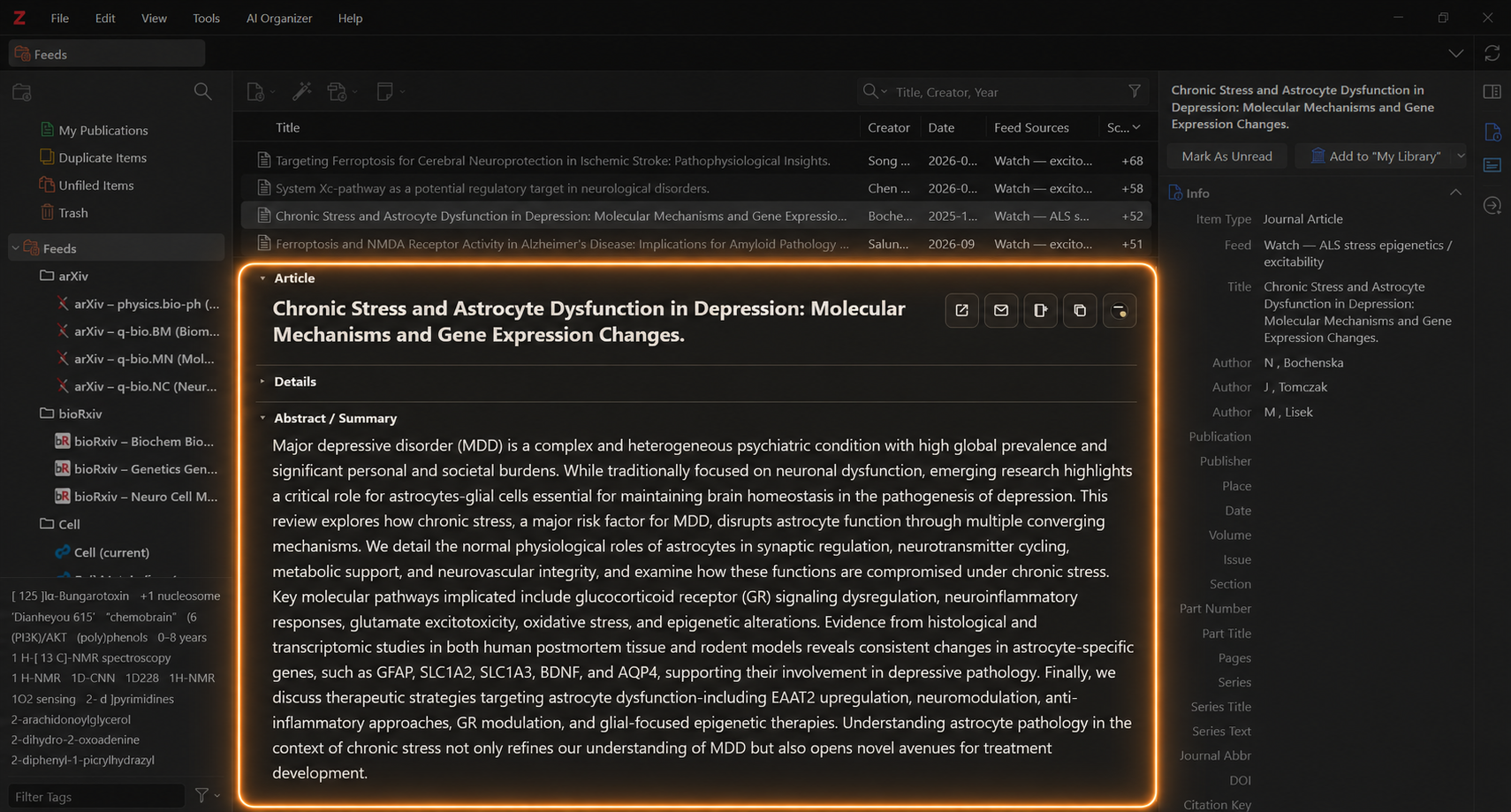
RSSrch adds a research-focused Reader below Zotero’s native feed item list.
The Reader brings together the information needed to evaluate incoming literature without replacing Zotero’s feed system.
It can display:
- article title
- authors
- effective metadata
- abstract or summary
- Feed Subjects
- Zotero tags
- manual tags
- Relevance Score
- Score Breakdown
- matched Include-rule highlights
- metadata enrichment provenance
- duplicate-feed provenance
- article actions
The Reader is designed for rapid research triage:
Select feed item
↓
Read title and abstract
↓
See why it matched
↓
Inspect Score
↓
Open article, change read state, copy, or save
↓
Move to next paper
The Reader works inside Zotero’s feed views
RSSrch does not create a separate article database or independent reading application.
The Reader is integrated beneath Zotero’s existing feed item tree.
Conceptually:
Zotero Feeds tree
↓
Zotero feed item list
↓
RSSrch Reader
Zotero remains responsible for:
- feed subscriptions
- feed-item storage
- native item selection
- feed read state
- normal Add to My Library translation
- native feed refresh
RSSrch adds research-specific presentation and workflow around those native objects.
Show or hide the Reader
Open Zotero’s:
View → RSSrch Reader
to enable or disable the Reader panel.
The setting is remembered.
The Reader is displayed only while working in RSS feed contexts. Ordinary Zotero library and collection views are not turned into RSSrch Reader views.
Resize the Reader
A splitter separates Zotero’s item list from the RSSrch Reader.
Drag the splitter to increase or decrease the Reader height.
RSSrch remembers the selected Reader height for later sessions.
This allows the workspace to be adjusted according to whether you prefer:
- more visible feed rows
- more abstract reading space
- a balanced item-list and Reader layout
What appears in the Reader depends on selection
The Reader area is contextual.
Different selections produce different views.
No specific feed item selected
When no folder, feed, or feed item is selected, RSSrch displays its Reader home view.
The home view provides quick reminders for:
- feed navigation
- Unread Only
- Feed Folders
- RSSrch Active
- scoring
- Admission
- tag-based research context
RSSrch folder selected
Selecting an RSSrch Feed Folder displays that folder’s dashboard.
The dashboard can show:
- folder name
- RSSrch processing state
- effective Active state
- direct feed count
- item count
- on-demand Score metrics
Individual feed selected
Selecting a native Zotero feed without selecting a feed item displays the feed dashboard.
The dashboard can show:
- feed name
- RSSrch Active state
- effective processing state
- visible item count
- on-demand Score metrics
One feed item selected
Selecting one feed item opens the article Reader.
This is the primary research-triage view.
Multiple feed items selected
If several feed items are selected, RSSrch does not attempt to merge their abstracts into one Reader view.
Instead, the Reader reports the number of selected feed items and asks you to select one item for complete article reading.
Bulk operations such as copying selected feed items remain available separately.
The article view
The article Reader is organized into three primary collapsible areas:
Article

Details

Abstract / Summary
The Article section contains the title and Reader actions.
Details contains the supporting research metadata.
Abstract / Summary contains the normalized effective abstract.
The Article and Abstract sections open by default.
Details starts collapsed so the abstract remains the primary reading surface.
Section expansion states are remembered.
Article title
RSSrch displays the effective feed-item title at the top of the Reader.
If the selected item matched applicable Include conditions on its title, RSSrch can highlight the exact title text that contributed to those matches.
The title remains selectable text.
Reader actions
The upper-right area of the Article section contains the primary triage controls.
The available actions are:
- Open Article
- Mark As Read or Mark As Unread
- Add to My Library
- Copy Item
- Reader theme selection
These controls act on the currently selected Zotero feed item.
Open Article
Click:
Open Article
to open the article associated with the feed item.
RSSrch first uses the item’s article URL.
If no usable URL is available but the item has a DOI, RSSrch can use the DOI as the article destination.
Conceptually:
Article URL available?
├── Yes → open URL
└── No
    ↓
    DOI available?
    ├── Yes → open DOI destination
    └── No  → Open Article unavailable
RSSrch delegates article opening to Zotero’s normal URI handling.
Mark As Read and Mark As Unread
The Reader provides an explicit control for changing the Zotero feed item’s read state.
The button changes according to the current state:
Unread item
→ Mark As Read

Read item
→ Mark As Unread
RSSrch uses Zotero’s feed-item read mechanism.
It does not maintain a second RSSrch-specific read state.
This means read and unread status remains part of Zotero’s normal feed data.
Read-state appearance in the feed list
RSSrch strengthens the visual distinction between read and unread items while in feed views.
Unread feed rows are displayed with stronger text emphasis.
Read rows are visually muted.
This styling is scoped to feed views and does not alter the appearance of ordinary Zotero library collections.
The underlying read state is still Zotero’s.
Unread Only
RSSrch provides an Unread Only triage mode.
Open:
Tools → RSSrch → Feed View → Unread Only (U)
or press:
U
while working in the feed list or Reader.
Unread Only hides read feed items from the current RSSrch feed presentation.
Conceptually:
Unread Only OFF
↓
read + unread items visible

Unread Only ON
↓
unread items visible
The filter is presentation-only.
It does not modify the stored read state of hidden items.
The U shortcut is feed-specific
The single-letter U shortcut is deliberately restricted to RSS feed work.
It is active when keyboard focus is inside:
- the Zotero feed item list
- the RSSrch Reader
- the containing feed-item workspace
It is ignored while typing in editable controls.
This prevents ordinary text entry elsewhere in Zotero from unexpectedly toggling Unread Only mode.
The selected item stays visible when marked read
Unread Only has special selection handling.
Suppose you are reading an unread paper with Unread Only enabled:
Paper selected
↓
Mark As Read
RSSrch does not immediately remove the selected paper from underneath you.
The currently selected item remains temporarily pinned in the visible queue.
When you deliberately move to another item, the previously read paper can then disappear from the Unread Only presentation.
Conceptually:
Read current paper
↓
Current selection remains visible
↓
Move to another paper
↓
Previously read paper leaves Unread Only queue
This prevents a read-state update from automatically removing the current row, selecting the next paper, marking that paper read, and cascading through the unread list.
It is specifically designed to make sequential feed triage stable.
Add to My Library
Click:
Add to My Library
to save the selected feed item to Zotero’s user library.
RSSrch uses Zotero’s normal feed-item translation path.
Conceptually:
Selected Zotero FeedItem
↓
Zotero FeedItem translation
↓
My Library
RSSrch does not create a separate imported-paper representation.
The resulting item is a normal Zotero library item.
Attachments and PDFs
Because the Reader uses Zotero’s normal feed-item translation path, Zotero can retrieve translator-provided attachments or PDFs when they are available.
Whether a PDF is obtained depends on:
- the publisher
- the article page
- the available Zotero translator
- the metadata and attachment access available to Zotero
RSSrch does not independently guarantee a PDF.
This is the same underlying Zotero behavior used by automatic Add to My Library Actions.
Copy Item
Click:
Copy Item
to copy a Markdown representation of the selected feed item to the clipboard.
The copied report can contain available information such as:
- feed
- title
- authors
- publication date
- retrieval date
- publication or source
- publisher
- Section / Article Type
- Feed Subjects
- Manual Tags
- Zotero item type
- DOI
- ISSN
- volume
- issue
- pages
- language
- URL
- abstract or summary
- enrichment provenance
The copied content uses RSSrch’s effective metadata where applicable.
This can be useful for:
- external analysis
- research notes
- AI review
- troubleshooting
- sharing article metadata without exporting the Zotero item itself
Copy multiple feed items
The Reader’s Copy Item button operates on one selected article.
RSSrch also supports copying multiple selected feed items.
Open:
Tools → RSSrch → Feed View → Copy Selected Feed Items
or right-click selected feed items and choose:
Copy Selected Feed Items
The right-click label adapts to the selection.
For a single item it appears as:
Copy Feed Item
For multiple items it reports the number of selected feed items.
Each item is copied as a structured Markdown entry.
Effective metadata
The Reader does not simply dump the raw RSS payload.
It uses RSSrch’s effective metadata model.
Conceptually:
Native Zotero feed metadata
+
accepted RSSrch enrichment
↓
effective Reader metadata
For ordinary scalar fields, useful native feed values generally remain authoritative.
For quality-sensitive fields such as:
- Abstract / Summary
- creators
RSSrch can use a better enrichment-derived value when the native value is missing or materially poorer.
See Metadata Enrichment for the complete effective-metadata model.
Metadata provenance
When a successful enrichment record exists, the Reader can display a Metadata indicator such as:
Metadata
Enriched via [resolver]
This makes it clear that the displayed article information contains enrichment-derived metadata rather than implying that every field came directly from the original feed.
Details
The Details section contains supporting article information.
Depending on what is available, it can contain:
- Authors
- Metadata
- Feed Subjects
- Tags
- Manual Tags
- Score Breakdown
- URL
Each subsection is independently collapsible.
RSSrch remembers the section state.
This allows a user who frequently examines Score Breakdown, for example, to keep that subsection expanded while leaving less-used metadata collapsed.
Authors
The Authors subsection displays the effective creator information for the feed item.
RSSrch can use enriched creator metadata when the feed-provided creator list is missing or clearly lower quality.
Matched Include-rule text can also be highlighted when an Author condition contributed to Admission.
Metadata
The Metadata subsection summarizes important article information as compact metadata fields.
Possible entries include:
- Feed
- Score
- Published
- Retrieved
- Source
- Section
- Volume
- Issue
- Pages
- Publisher
- DOI
- Metadata enrichment provenance
For an ordinary item, RSSrch displays the source feed.
For an aggregate duplicate group, the metadata presentation can instead show:
- Feeds
- Copies
This makes the provenance of a deduplicated research article visible.
Published and Retrieved are different
RSSrch distinguishes:
Publishedfrom:
RetrievedPublished represents the article’s publication date when available.
Retrieved represents when the feed item entered Zotero.
This is useful for distinguishing article chronology from feed-ingestion chronology.
Feed Subjects
The Reader displays the item’s automatic subject metadata through:
Feed Subjects
These are the Zotero automatic tags used by RSSrch as structured research subjects.
They can originate from:
- RSS or Atom subject/category metadata
- publisher metadata
- metadata enrichment
See Feed Subjects and Tags for the complete tag model.
Tags
The Tags subsection displays the item’s Zotero tags without restricting the view to one tag type.
Conceptually:
Tags
=
automatic tags
+
non-automatic tags
Use this section when you want the complete tag context for the paper.
Manual Tags
The Manual Tags subsection shows only non-automatic Zotero tags.
These can include:
- user-created tags
- workflow tags
- tags created by RSSrch Actions
This keeps intentionally assigned research state distinguishable from automatic subject classifications.
Relevance Score
The Reader Metadata section displays the item’s current RSSrch Relevance Score.
For example:
Score +12The value comes from the saved RSSrch research model.
It can include:
Article-Type Score
+
Global scoring concepts
+
feed-specific scoring concepts
See Relevance Scoring for the complete scoring model.
The Reader uses saved rules
The Reader is part of the normal RSSrch research workflow.
It evaluates the selected feed item using the saved Global and feed-specific rule configuration.
Unsaved experimental changes currently open in the Rule Manager do not immediately alter the Reader.
To make Rule Manager changes part of normal Reader behavior, save them first.
Use Preview and Rule Testing when you want to evaluate unsaved rule changes.
Score Breakdown
When one or more scoring contributions matched, the Reader can display:
Score Breakdown
For example:
+8 Core mechanism · +4 Oxidative stress · -2 ReviewThe breakdown can contain contributions from:
- Article-Type Scoring
- Global scoring concepts
- feed-specific scoring concepts
Each scoring concept contributes only once according to the rules documented in Relevance Scoring.
The breakdown explains the number rather than presenting the final Score as an unexplained ranking value.
Include-rule highlighting
RSSrch can highlight text that contributed to matched Include conditions.
Possible highlighted Reader fields include:
- Title
- Authors
- Abstract / Summary
- URL
- Feed Subjects
- Tags
- Manual Tags
For example, if an Include condition contains:
Abstract / Summary
contains
ferroptosis
and the paper passed that condition, the matching occurrence can be highlighted in the displayed abstract.
What Reader highlights mean
Reader highlighting is specifically tied to matched Include conditions.
It should not be interpreted as:
- every keyword RSSrch recognized
- every matched scoring concept
- every Exclude term
- a general article keyword extractor
Conceptually:
Matched Include condition
↓
matching displayed text
↓
Reader highlight
The Score Breakdown separately explains scoring contributions.
This keeps:
Why the item entered the research scopedistinct from:
Why the item received its rankingAbstract / Summary
The Abstract section is the main reading surface.
RSSrch normalizes feed content before displaying it.
This can include cleaning transport-level presentation issues such as:
- HTML fragments
- repeatedly encoded entities
- leading feed boilerplate
- feed-specific transport prefixes
- redundant leading
Abstract:labels
The purpose is to present the article’s usable abstract text, not the raw XML or HTML payload transported by the feed.
RSSrch does not rewrite the original Zotero field merely to produce this display.
Better enriched abstracts
When the native feed abstract is missing or poor, the Reader can use a better enrichment-derived abstract.
For example:
Native feed abstract:
View full text

Enriched abstract:
Complete structured article abstract

↓
Reader displays enriched abstract
If the native abstract is already useful, RSSrch normally keeps it.
See Metadata Enrichment for the abstract-quality rules.
Abstract highlights survive normalization
RSSrch evaluates rules against its effective item data and then maps matched Include terms into the normalized Reader display.
When feed normalization changes the visible character positions, RSSrch rebuilds the highlight ranges against the normalized abstract.
This allows research highlights to remain aligned with the text actually shown in the Reader.
Reader themes
The Reader has its own theme control in the Article action area.
RSSrch 1.0.0 includes:
- Zotero Default
- Warm Graphite
- Soft Charcoal
- Midnight Slate
- Forest Dusk
- Warm Paper
- Soft Paper
The selected theme is remembered.
Themes affect the RSSrch Reader surface rather than changing Zotero’s global application theme.
This allows a low-eye-strain reading surface to be used without altering the rest of Zotero.
Collapsible sections are remembered
RSSrch remembers whether Reader sections were expanded or collapsed.
For example, you might prefer:
Article
open

Details
open

Metadata
closed

Score Breakdown
open

Abstract / Summary
open
After setting that arrangement, RSSrch can preserve it for later Reader use.
Aggregate duplicate provenance
The top-level Zotero Feeds view can use RSSrch aggregate deduplication.
When several subscriptions contain copies of what RSSrch identifies as the same research work, RSSrch can present one representative row.
If the selected item belongs to such a group, the Reader can display:
Feeds
Feed A; Feed B; Feed C

Copies
3
rather than pretending the representative came from only one source.
This keeps the aggregate presentation deduplicated while preserving source provenance.
Read state across aggregate copies
When the selected representative belongs to a duplicate group, the Reader’s read-state control applies to the represented feed copies together.
For example:
3 duplicate feed copies
↓
Mark As Read
↓
all 3 copies marked read
Likewise:
Mark As Unread
↓
all represented copies marked unread
This prevents one visible aggregate work from appearing unread again simply because another hidden feed copy still carries a different read state.
Effective read state for duplicate groups
For a duplicate group, RSSrch treats the aggregate work as read only when all represented copies are read.
Conceptually:
Copy A read
Copy B read
Copy C unread
↓
Aggregate item still effectively unread
When all copies are read:
Copy A read
Copy B read
Copy C read
↓
Aggregate item effectively read
This keeps the aggregate review queue aligned with the underlying Zotero feed items.
Deduplication does not merge Zotero items
Aggregate deduplication is presentation-only.
RSSrch does not:
- delete duplicate feed items
- merge Zotero feed records
- rewrite one feed item into another
- move subscriptions
- alter a feed item’s metadata merely because another copy exists
The Reader simply exposes the provenance of the aggregate presentation.
See Aggregate Feed Deduplication for the full model.
Feed and folder dashboards
The Reader area also serves as a dashboard when the selection represents a research scope instead of one article.
This avoids leaving the lower reading area empty when a feed or RSSrch folder is selected.
Feed dashboard
The feed dashboard can show:
- RSSrch Active state
- effective processing state
- visible item count
- Score metrics
The Active state can be changed directly from the dashboard.
Folder dashboard
The folder dashboard can show:
- folder name
- folder RSSrch Active state
- effective state after inheritance
- direct feed count
- item count
- direct feed names
- Score metrics
The folder Active state can also be changed directly from the dashboard.
See Feed Folders for the folder hierarchy and Active inheritance model.
Score metrics are loaded on demand
Feed and folder dashboards do not automatically calculate the more expensive Score metrics every time the selection changes.
Click:
Load Current Score
to calculate them.
After metrics have been loaded, the control becomes:
Reload Current Score
The dashboard can then display:
- Current Score
- Total Score
- Hit Rate
- High Value
- Max Score
This separates ordinary navigation from additional score-history work.
These dashboard metrics are part of RSSrch’s Feed Value system and are distinct from the single-paper Relevance Score displayed in the Reader.
A practical triage workflow
A typical RSSrch reading session can look like:
Select research folder or Feeds
↓
Enable Unread Only
↓
Sort or inspect papers by Relevance Score
↓
Select first paper
↓
Read title and abstract
↓
Inspect Include highlights
↓
Inspect Score Breakdown
↓
Open full article if needed
↓
Add valuable paper to My Library if appropriate
↓
Mark item read
↓
Move to next item
Because the selected read paper remains pinned under Unread Only until you move away, the current article remains stable while you finish working with it.
Example research decision
Suppose the Reader displays:
Score
+14

Score Breakdown
+8 Core mechanism
+4 Oxidative stress
+4 Target disease context
-2 Review
The abstract also highlights terms that caused the paper to pass its Include rules.
You can distinguish three different layers of information:
Include highlights
→ why the paper entered the research scope

Score Breakdown
→ why it ranked at +14

Metadata / Abstract
→ what the paper actually reports
You can then decide whether to:
Open Article

Add to My Library

Copy Item

Mark As Read
without leaving the feed-review workspace.
The Reader is a triage surface, not a replacement for Zotero’s PDF Reader
RSSrch’s Reader is focused on incoming RSS research discovery.
Its primary content is:
- feed metadata
- abstracts
- rule evidence
- relevance information
- feed triage controls
When a paper is saved to My Library and has a PDF attachment, Zotero’s normal PDF Reader remains the appropriate environment for:
- full-text reading
- annotations
- highlights
- notes
- attachment management
RSSrch’s Reader operates earlier in the workflow:
Incoming RSS paper
↓
RSSrch Reader triage
↓
Worth keeping?
↓
Add to My Library
↓
Zotero full-text research workflow
Recommended Reader workflow
For normal research triage:
- Select the top-level Feeds view, an RSSrch folder, or an individual feed.
- Enable Unread Only if you want a review queue containing unread papers.
- Use the Score column to prioritize higher-ranked papers when useful.
- Select one feed item.
- Read the normalized Abstract / Summary.
- Inspect highlighted Include-rule matches.
- Expand Details when additional context is needed.
- Inspect the Score Breakdown for the reasons behind the ranking.
- Review Feed Subjects and tags when structured metadata matters.
- Open the full article when the abstract warrants deeper review.
- Add valuable papers to My Library.
- Copy item metadata when it is needed outside Zotero.
- Mark the item read when triage is complete.
- Move to the next paper.
- Refine Include and Exclude Rules or Relevance Scoring when repeated Reader results reveal weaknesses in the research model.